
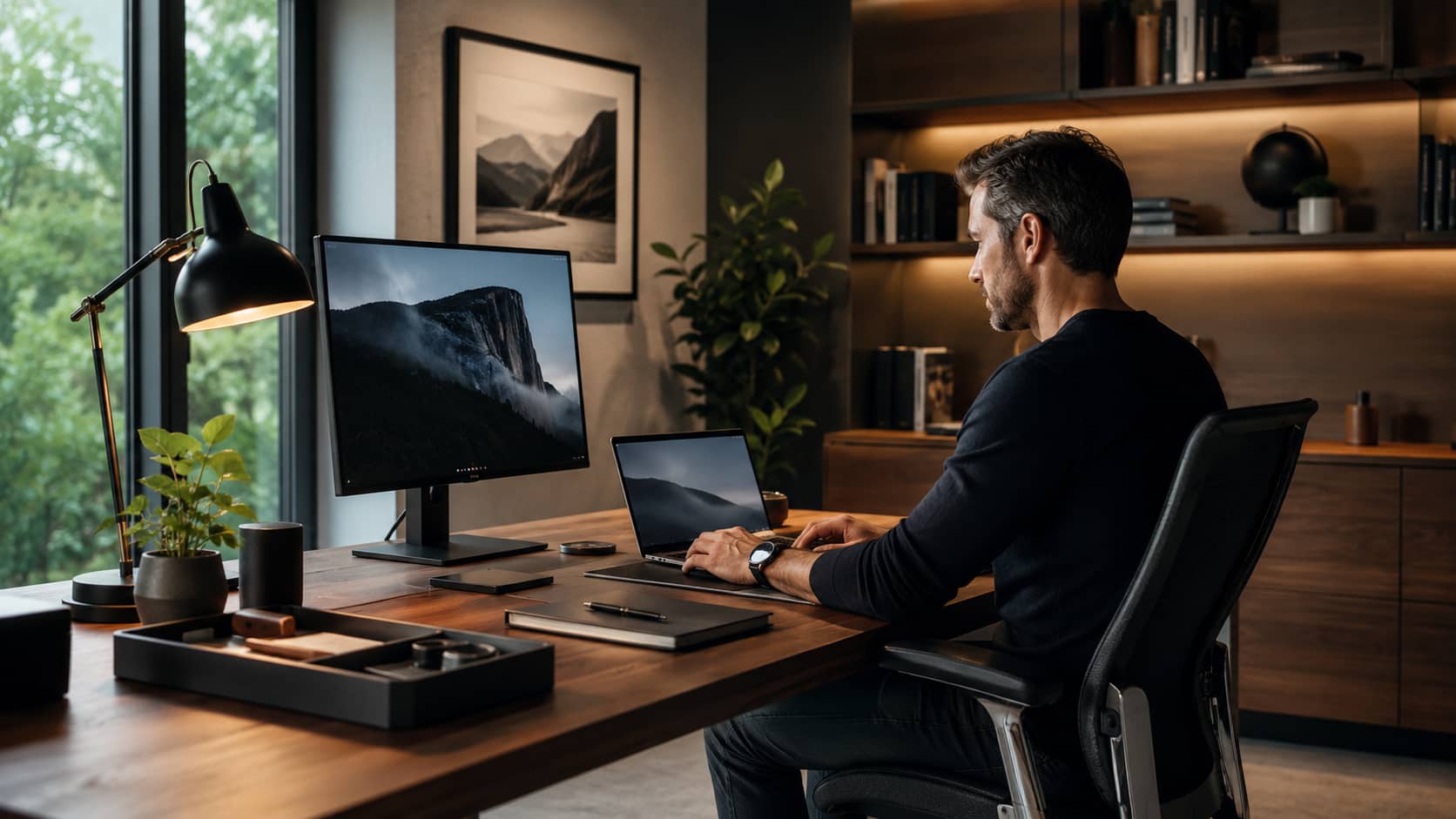
A better home office is not a room filled with expensive equipment. It is a workspace that supports the tasks you repeat, reduces awkward reaching, provides usable light, and makes it easy to begin and end the workday.
Start by fixing the physical arrangement before buying devices. A laptop stand is not useful if it raises the screen but leaves the keyboard too high. A premium chair cannot compensate for a desk that forces your shoulders upward.
Define the work the space must support
List your main tasks and the time spent on each. Writing, design, video calls, audio editing, spreadsheets, and customer support create different priorities. Someone who spends six hours typing needs better keyboard positioning than someone who moves between calls and paper documents.
Also identify non-work uses. If the same desk is used for gaming or family administration, plan storage and device switching rather than allowing every item to remain connected and visible.
Set the chair and desk relationship first
Adjust the chair so your feet are supported and your thighs feel comfortable. Elbows should remain near the body when typing, without the shoulders lifting. If the desk is too high and cannot be adjusted, raise the chair and add a footrest.
OSHA’s computer workstation guidance recommends relaxed shoulders, straight wrists, and elbows generally between 90 and 120 degrees. These are useful design goals, not a demand to freeze in one posture.
Choose a chair for adjustment, not appearance
A chair should support your body size and allow changes in position. Useful features include seat-height adjustment, a backrest that supports the lower back, suitable seat depth, and armrests that do not prevent you from approaching the desk.
Try the chair when possible. Reviews cannot tell you whether the seat edge presses behind your knees or the lumbar support sits in the wrong place. An inexpensive adjustable chair that fits can outperform a premium model designed for a different body.
Position the screen to reduce repeated neck movement
Place the primary monitor directly in front of you, roughly an arm’s length away, with the top area near eye level. The exact height depends on screen size, glasses, and how much of the display you use. You should not need to hold the chin upward or bend toward the screen.
If you use two monitors equally, centre the join between them. If one is primary, centre that screen and place the second nearby. A laptop used for long periods usually benefits from an external keyboard and pointing device.
Control glare before increasing brightness
Position screens perpendicular to windows where possible. Direct light behind the monitor creates contrast, while a window behind you can reflect on the screen. Use blinds, curtains, or a movable lamp to control changing daylight.
Provide general room light and a task lamp for paper. Extremely bright screens in a dark room can feel tiring. Adjust text size before moving the monitor closer.
Choose input devices by comfort and task
A keyboard should allow the wrists to remain fairly straight. Compact keyboards reduce the distance to the mouse, but removing the number pad may be inefficient for frequent numerical work. Split or ergonomic models can help some users but require an adaptation period.
The mouse or trackpad should sit close enough that the upper arm remains relaxed. Alternate devices if one movement causes discomfort. Shortcuts and automation can reduce repetitive input more effectively than a different mouse shape.
Treat audio as part of the workspace
For frequent calls, microphone quality and comfort matter more than cinematic sound. A dedicated USB microphone can improve clarity, but it also captures room noise if placed far away. Often a headset microphone near the mouth is simpler.
The guide to choosing headphones for travel and work covers comfort, safe listening, and call performance. Keep volume moderate and take quiet breaks between long calls.
Use a dock only when it removes friction
A docking station is useful when one cable connects power, displays, storage, networking, and peripherals. Check that the laptop port supports the required video outputs and charging power. An adapter cannot create capabilities the computer does not have.
Label cables and secure them with reusable ties. Leave enough slack for adjustment and avoid tightly bending connectors. Mounting a power strip beneath the desk can reduce floor clutter, but it must remain ventilated and accessible.
Create movement opportunities
A standing desk is an option, not a cure. Standing still for hours creates its own discomfort. Alternate sitting, standing, and walking, and use calls as prompts to change position.
The mobility routine for desk workers provides a ten-minute sequence, but smaller movement breaks throughout the day are equally important. Place water or a printer far enough away that you occasionally stand.
Separate work from the rest of the room
At the end of the day, close applications, clear one small area, and turn off work notifications. If the office is in a bedroom or living room, use a box, cabinet, or screen to reduce visual reminders.
A reliable setup should make work easier and stopping easier. Improve one constraint at a time, beginning with the chair-desk relationship, screen position, and lighting. Buy equipment only when you can name the repeated problem it will solve.